|
|
 User EQ
Use the User EQ action to apply and manage filters and settings on speakers and groups of speakers.
Access the EQ panel by clicking on the interactive button on the virtual device. Changes made on the EQ panel will be reflected in the graph on the interactive button.

Note: If the speaker is part of a locked group a yellow lock icon will be visible and no adjustments can be made until the group is unlocked.
Use the EQ panel to add and adjust filter bands for the selected speaker.
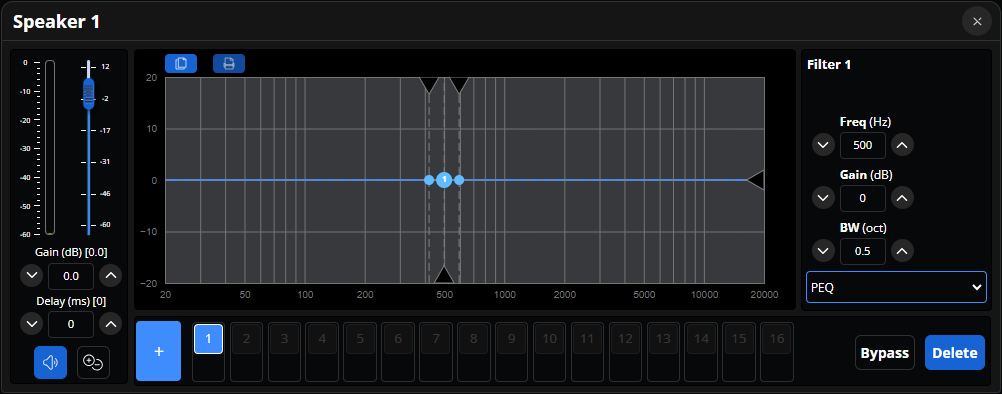
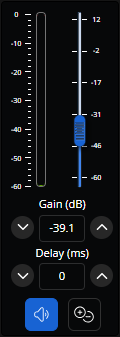
The number fields, toggles, slider, and meter on the left are the speaker adjustments. Each value selection in this section corresponds to the values or modes selected during previous actions.
Gain: Use the text field to adjust the gain of the selected speaker. The gain must be within a -60 to 12 dB range.
Delay: Use the text field to adjust the delay of the selected speaker. The delay must be within a 0 to 20000 ms range.
Mute: Use the mute toggle to mute the speaker.
Polarity: Use the polarity toggle to invert the speaker polarity.
Each individual speaker, or group, has 16 EQ filter bands. A speaker can host up to 72 total EQ filter bands, including it's own and group EQ bands applied to it.
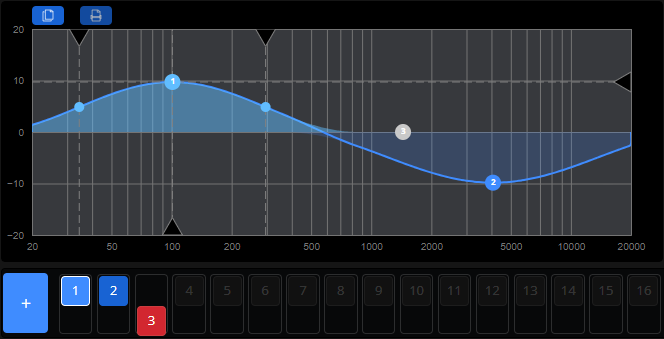
Add Filter: Use the [+] button in the lower left to add a filter.
Filter Band Toggles: Along the bottom edge of the EQ chart, each filter band number is displayed on a toggle. Toggles with an active filter will display blue and the selected filter toggle will have a white highlight around it. Double click on a toggle with an active filter to bypass that filter, while a filter is bypassed its toggle will display red and be switched to a downward position. Toggles without a filter band display dark and can't be interacted with until a filter is added.
Copy & Paste: Copy and Paste buttons are available in the upper left of this section. Copy captures all bands and paste will overwrite any existing filter bands, both actions have a text prompt to inform or confirm the action.
EQ Graph: Each active filter has a main drag point available, that displays the associated filter band number, on the EQ chart to make manual adjustments to frequency or gain by clicking and dragging. Moving it left or right will adjust the frequency while moving it up and down will adjust the gain. Most filters also have additional drag points on either side of the main drag point for adjusting the bandwidth by clicking and dragging nearer to or further from the primary drag point. Each drag point has an associated horizontal or vertical dashed line, these lines and the associated drag points may also be adjusted using the triangle shaped endpoints at the edges of the chart. All adjustments are reflected on the graph in the form of the EQ curve. The curve of the selected band has a light blue color, the curve of active filters are displayed in dark blue, and Inactive filters are not displayed. Bypassed filters will not be applied to the curve but the primary drag point for a bypassed filter will appear grey and sit along the 0 gain value line.
The number fields, toggles, and drop-down menu are the filter band adjustments. The selected filter band number is at the top of this section.
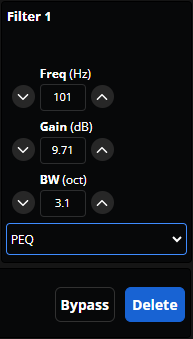
Frequency: Use the text field and dial to adjust the frequency (Freq) of the selected filter. The frequency must be within a 20 to 20000 (Hz) range.
Gain: Use the text field and dial to adjust the gain of the selected filter. The gain must be within a -15 to 15 (dB) range.
Bandwidth: Use the text field and dial to adjust the bandwidth (BW) of the selected filter. The bandwidth must be within a 0.1 to 10 (oct) range.
Filter Type: Use the filter drop-down menu to change the filter type of the selected filter.
Bypass Toggle: This button activates the toggle on the EQ filter chart.
Delete: Delete the selected filter band. Once a band is deleted all bands that are a numerically higher value will downshift. For example, if bands 1 through 5 are active, filter band 3 is deleted, band 4 will become band 3, band 5 will become band 4, and band 5 will become inactive (bands 1 and 2 will be unaffected). The delete action cannot be undone.
Access the Group EQ panel by clicking on the EQ chart button on the Group.
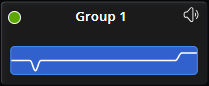
Note: If the group has speakers that are part of a locked group a yellow lock icon will be visible and no adjustments can be made until that group is unlocked. Groups that are locked are may have adjustments made as normal.
The Group EQ panel menu shares the same options as the speaker panel menu.
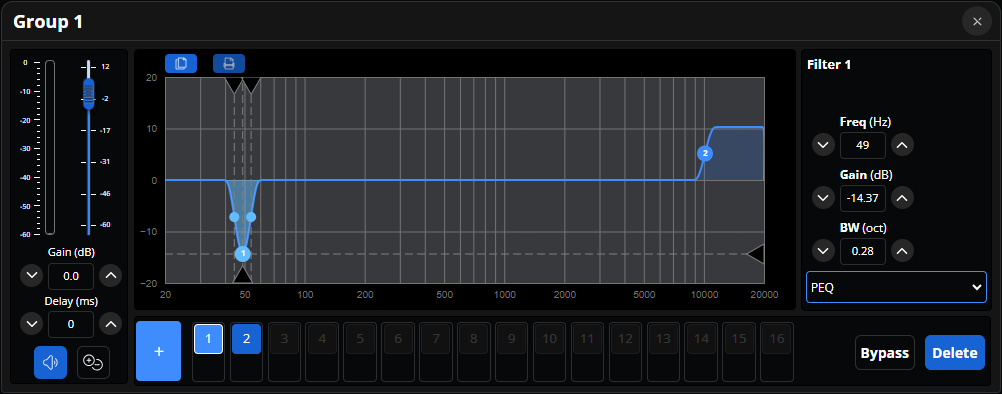
Group EQ changes will affect each speaker within that group. Speakers within the selected group are indicated with a dark blue color while a group EQ chart button is selected.

Changes made to the Group EQ will be reflected in the panel menu EQ graphs of all speakers within that group but will not be reflected on EQ chart button on the speaker. Group EQ changes do not replace or override existing filters on the speaker.
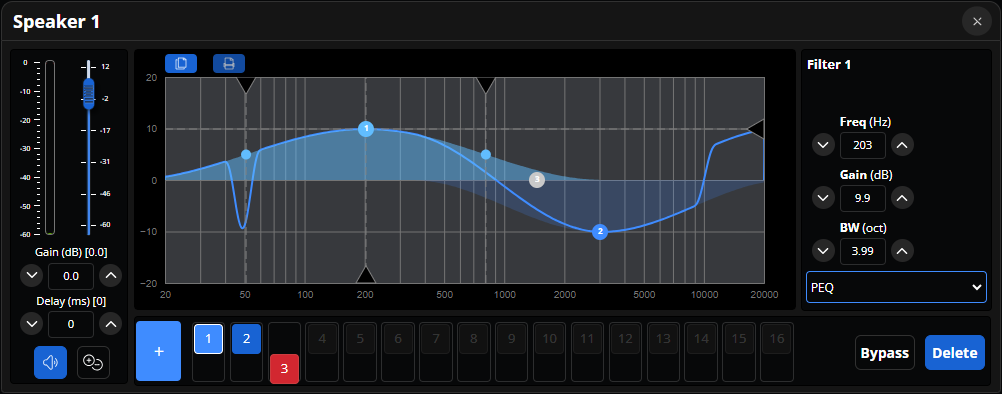
Each speaker is affected by EQ changes made to each group that it belongs to.
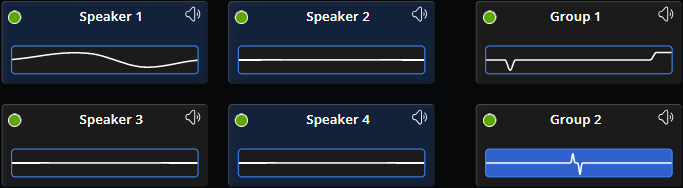
The filter bands of each group a speaker belongs to will be visible in the EQ panel for that speaker alongside the EQ filters for that individual speaker. Group EQ filters cannot be directly edited from the speaker panel menu, though speaker EQ filters will effect them on that speaker EQ, and any edits to group EQ will need to be made within that group's EQ panel menu.

Note: if the 72 total EQ filter band limit has been reached, the add filter button will darken in color and will no longer be usable.
 Optimize