
Use the Icons for phases and actions along the top ribbon of the program to navigate VenueTune. Phases and actions will display blue and have an underline while selected. Additionally, the top ribbon has status display and mute all toggle.
Phases are the overarching steps to build a system in VenueTune and each is made up of a series of Actions.
Define: Actions for establishing spaces and locations, importing an image, and adding sources to the system.
Design: Actions for creating, assigning, and configuring the initial system.
Deploy: Actions for associating virtual devices with physical ones as well as managing and configuring settings within the system.
Optimize: Actions for testing, managing, and refining the system.
Use: Actions for ongoing monitoring and configuration of the system.
Define actions are for initial organizing and establishing of a system.
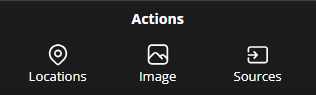
Locations: The Locations action is used to create virtual locations in VenueTune that represent physical spaces.
Image: Use the Image action to select an image as a background for the workspace.
Sources: The Sources action is used to create and manage audio sources in VenueTune.
Design actions are for creating, assigning, and configuring the system.

Speakers: Use the Design Phase Speakers action to create virtual speakers that represent physical devices for the purpose of designing, tuning, and configuring a system.
Groups: Create groups that can be used to gather loudspeakers under shared overarching settings.
Amplifiers: Create virtual amplifier racks that hold virtual amplifiers that represent physical devices.
Sources: The Sources action is used to create and manage audio sources in VenueTune.
Match: Assign amplifier outputs with speaker inputs in a system via a split screen that includes both amplifier locations and speaker views.
Usage: Includes a Simulation Calculation panel menu to view or export usage information and Mains profile management options for amplifiers.
Configuration: View and make adjustments to individual device, group, and system attributes.
Deploy actions are for associating virtual devices with physical ones as well as managing and configuring settings within the system.

Link: Associate virtual amplifier devices in the system to physical devices connected to the system. Additionally, associate sources in the system to transmitting devices connected to the system.
Speakers: Use the Deploy Phase Speakers action to view, manage, and edit speaker attributes.
Input: Associate speakers with sources and manage speaker inputs as well as set failover priority.
Solo: Test speakers and groups of speakers.
Impedance: Use the Impedance action to view, measure, and manage a speaker's total opposition to the alternating current from an amplifier.
Power: Select performance profiles for an amplifier.
Configuration: View and make adjustments to individual device, group, and system attributes.
Optimize actions are for testing, managing, and refining the system.

Speakers: Use the Optimize Phase Speakers action to view, manage, and edit speaker attributes.
Mute: Toggle the mute status for speakers and groups.
Gain: Adjust the gain of individual speakers or groups.
Delay: Adjust the Delay of individual speakers or groups.
Polarity: Set or invert speaker or group polarity.
User EQ: Apply, edit, and manage EQ filters and settings on speakers and groups.
Configuration: View and make adjustments to individual device, group, and system attributes.
Use actions are for ongoing monitoring and configuration of the system.

Outputs: View and monitor ongoing voltage and power information.
Temperature: View and monitor the temperature of devices in the system.
Mains: View and monitor ongoing input current and input voltage information.
Sources: The Sources action is used to create and manage audio sources in VenueTune.
Configuration: View and make adjustments to individual device, group, and system attributes.
The status section has indicators to display if the system is currently offline or online, as determined by the Network toggle in the Link action, and to show any faults present. When a fault or Warning is present in the system, whichever category that represents the fault or warning will display a color, red indicates a fault while yellow indicates a warning.
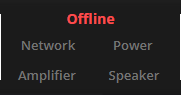
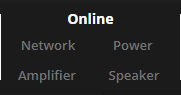
Note: For details about the kind fault or warning, access the Amplifier Configuration Panel of the amplifier displaying a fault or warning via the Configuration Action. Listed below, by category, are names and descriptions of the faults or warnings that will appear in the Health section of the panel menu.
| Severity | Name | Description |
| Fault | NW_LINK_STATE | No Link |
| Fault | NW_AUDIO_STATE | No Audio |
| Severity | Name | Description |
| Fault | No mains power | |
| Fault | PSU_OVERVOLTAGE_STATE | Over voltage protection |
| Fault | PSU_UNDERVOLTAGE_STATE | Under voltage protection |
| Warning | PSU_OVERVOLTAGE_STATE | High voltage warning |
| Warning | PSU_UNDERVOLTAGE_STATE | Low voltage warning |
| Warning | NW_POE_STATE | No PoE power |
| Severity | Name | Description |
| Fault | PFC_FAULT_STATE | N.r. fault PS1 |
| Fault | DCDC_FAULT_STATE | N.r. fault PS2 |
| Fault | NEEDS_SERV_STATE | Ch x broken |
| Fault | TEMP_PROT_STATE | Ch x temp protection |
| Warning | TEMPERATURE_FAULT_STATE | PSU temperature |
| Warning | FAN_STUCK_STATE | Fan stuck |
| Warning | Sleep | |
| Warning | CHANNEL_TEMPERATURE_STATE | Ch x temp |
| Warning | I_CLIP_STATE | Ch x I clip |
| Warning | I_LIMIT_STATE | Ch x I limit |
| Warning | V_CLIP_STATE | Ch x V clip |
| Severity | Name | Description |
| Fault | SHORTED_STATE | Ch x shorted |
| Fault | NO_LOAD_STATE | Ch x no load |
| Warning | SPK_LIMIT_STATE | Ch x limit |
Using the mute all button will mute all loudspeaker in the system. While active the mute all button will display red and have a slash through it.

